
How to use stayV Host · EP. 16
Using stayV HostConnect your Airbnb calendar to stayV
At a glance
Register Airbnb's calendar link in stayV to import dates without retyping them. Follow screenshots from finding the link to comparing the first imported dates.


If you have been moving dates between Airbnb and stayV by hand, try connecting the calendars. Register Airbnb’s dedicated calendar address once to import its schedule. Check that both services use the same property, then carefully compare the imported dates.
At a glance
- Open the correct listing’s calendar in Airbnb’s host screen.
- Copy its iCal link under Availability → Connect calendars.
- Choose the same property and Airbnb in stayV’s Calendar integration.
- Enter a connection name and dedicated link, then select Connect reservation calendar.
- Sync now and compare check-in/out dates with Airbnb.
Learn more
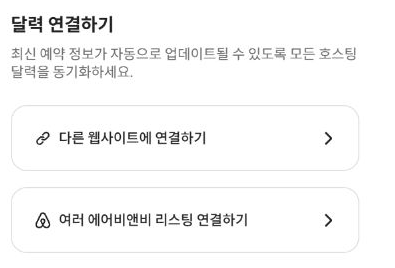
1. Find Airbnb’s export option
Open the listing’s Calendar in Airbnb. The official desktop help path is Availability → Connect calendars → Connect to another website.
Menu wording may vary by screen version. You need the export link that sends Airbnb dates out, rather than the field that imports another calendar into Airbnb.

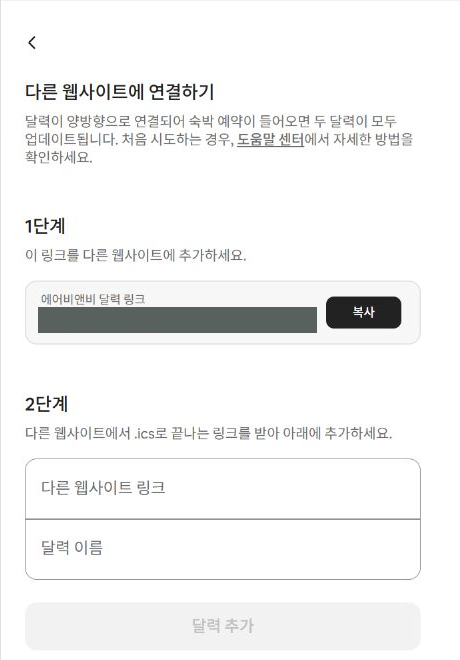
2. Copy the export link
Copy the iCal address Airbnb provides, usually beginning with https:// and ending in .ics. A listing page or browser calendar-screen address will not work.
Anyone who knows this link can view the property’s calendar. Paste it only into stayV’s designated field, keeping it out of messages and public guidance.
3. Choose the connection in stayV
Expand Calendar integration at the bottom of Reservation operations → Reservation schedule and access management. Choose the property, Airbnb and a recognisable name, such as “Yeonnam second floor · Airbnb.”
Check that the Airbnb listing and stayV property are the same. Using another room’s link can associate access information and cleaning schedules with the wrong reservation.
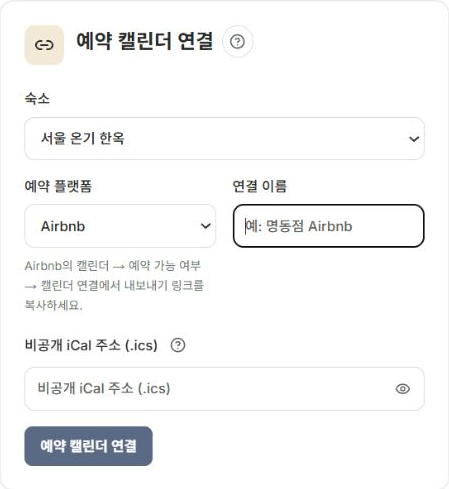
4. Save and run the first sync
Paste the copied URL and select Connect reservation calendar. Once the connection appears, select Sync now and check the last sync time, result and imported-event count.
Wait if processing is underway. For errors, check the selected property and that you used an export URL. Review the existing connection before creating duplicates with the same link.
5. Compare dates with Airbnb
Check that the same reservation’s arrival and departure dates match. Distinguish the last night stayed from the check-out date, and check that blocked dates are not treated as guest stays.
Imported reservations may still need preparation such as a Guide Code. Episode 17 continues that process.
6. Remember direction and timing
This connection brings Airbnb dates into stayV. Showing direct stayV reservations in Airbnb requires a separate export setup, covered in Episode 33.
Calendar sync is not instant. After Airbnb changes, stayV needs to read it again. Check Airbnb as well for same-day bookings or cancellations. Connections in the other direction follow that service’s refresh schedule.
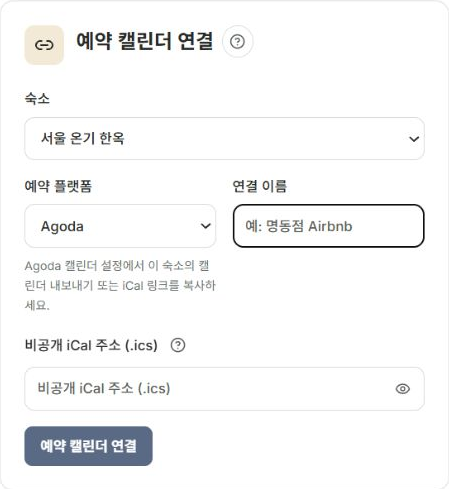
You can also import calendars from platforms supporting iCal export, such as Booking.com, Vrbo and Agoda. Check whether export is available for your account first. Agoda conditions can vary by property and room type; see its official calendar-connection help for current conditions.
Official path checked: Airbnb calendar-sync help, reviewed September 13, 2026.
Check your progress
- You connected the same property in Airbnb and stayV.
- You checked the latest sync and compared dates with the original.
- You understand that import (Airbnb → stayV) and export (stayV → Airbnb) need separate setup.
Availability and things to know
You need the paid stayV Plus plan and a host account that can manage the Airbnb listing’s calendar.
Read next
Episode 15 · Find schedules, access details and messages in Reservation operations
Episode 17 · Check imported reservations and prepare guest guidance