
How to use stayV Host · EP. 19
Using stayV HostSet arrival and entry-guidance times for each reservation
At a glance
Let guests see the address before arrival and door codes when it is time to enter. Adjust reservation guidance windows for early check-in or late check-out.

Guests need the detailed address before arriving, but you may want door codes to open later. stayV lets you set arrival and entry-information times separately. You can adjust the same screen for approved early arrivals or late departures.
At a glance
- Set arrival guidance (L1) and entry guidance (L2) times per reservation.
- Entry guidance should open later and close earlier than arrival guidance.
- Extend the entry window when approving early check-in or late check-out.
- Fill only fields for building doors, locks or key boxes your property uses.
- Check the actual lock separately; changing stayV times does not change it.
| Screen label | Meaning | Information |
|---|---|---|
| L1 · Arrival guidance | The period when booked guests can see information needed to reach the property | Detailed address, entrance directions and Wi-Fi |
| L2 · Entry guidance | The period when information needed to open the door is available | Building, door-lock and key-box codes |
Learn more
1. Check the current guidance windows
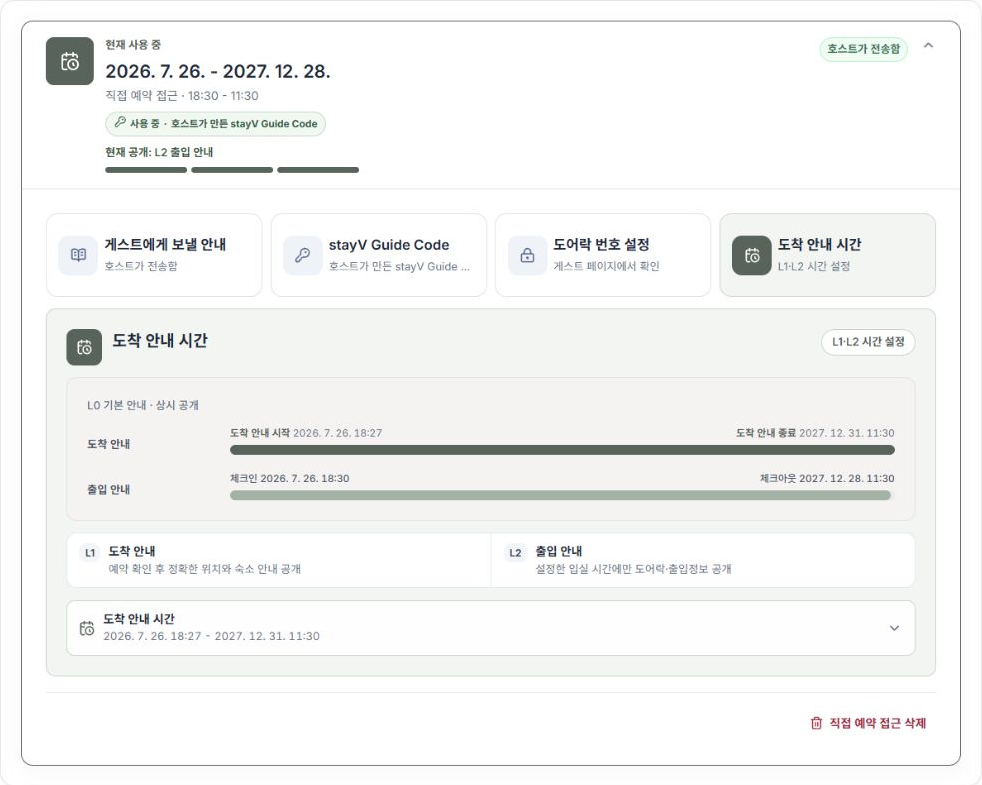
Select the property and reservation under Reservation operations → Reservation schedule and access management. Open Arrival guidance time: L1/L2 settings to see both windows.
Older direct-reservation cards first show a timeline. Expand Door-lock code settings: View on guest page to adjust entry times. Newly linked cards may use separate Usage time and Door lock tabs.
An arrival listed under Current stay in the host screen does not mean its door code is already visible to guests. Check that reservation’s actual release time.
2. Align the arrival and entry windows
Arrival guidance (L1) opens detailed addresses and directions. Entry guidance (L2) opens door codes. Keep the entire entry window inside the arrival window. For example, arrival information might open the afternoon before check-in, with entry information available from check-in until check-out.
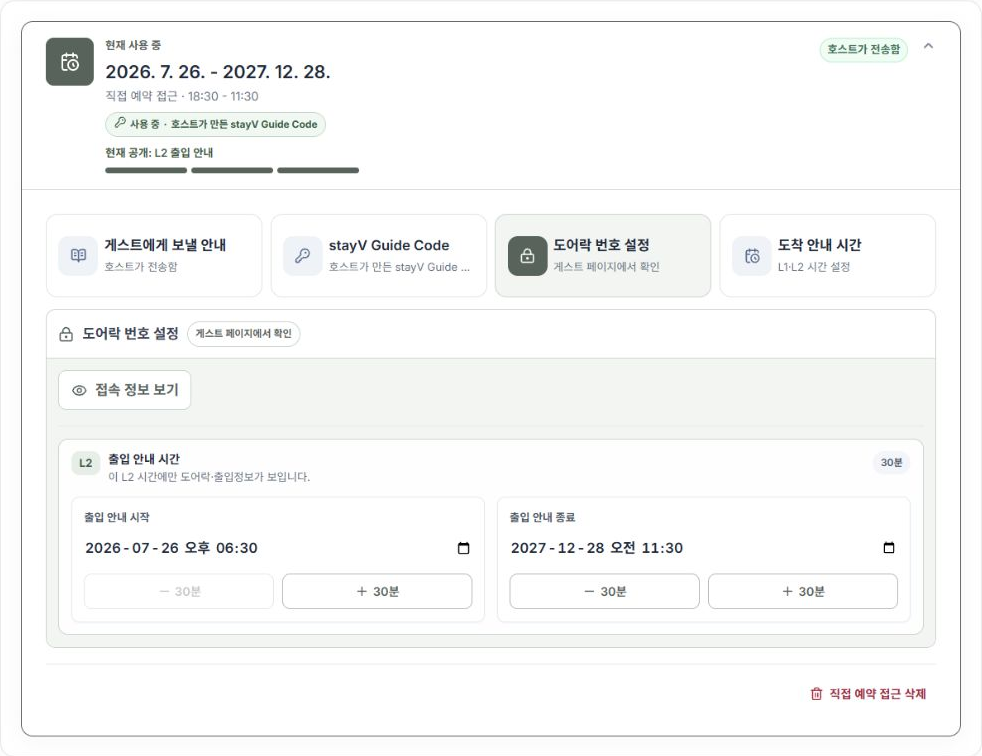
Adjust times under Usage time. On older cards, use Entry guidance start and Entry guidance end inside Door-lock code settings. Enter a date/time or use − and + to move it by 30 minutes. Screenshot dates are examples; use the real reservation dates.
3. Reflect early check-in and late check-out
For approved early check-in, bring the start forward. For late check-out, extend the end. Check on-screen restrictions, such as being unable to move the entry start to a day before the check-in date.
Use Reset to reservation times to return to the original schedule. Check how adjustments affect cleaning as well.
4. Enter only the access devices you use
Open Door-lock code settings or Door lock in the card. Review saved building, door-lock and key-box codes first and change them where needed. Leave unused devices blank. Manage codes here rather than duplicating them in cards or notes.
Automatically save a door code from the phone number’s last digits is optional for properties that use those digits. It fills only empty codes and does not overwrite an entered code. Enter codes yourself when phone-number digits are unavailable.
5. Change the real lock separately
Entering or automatically saving a code in stayV does not change the physical lock. Set its actual code and permitted times using the lock or manufacturer’s app.
Follow the manufacturer’s instructions for your model. Finish both saving in stayV and applying the setting to the lock.
6. Save and recheck
For an existing setup, select Save changes; for new access information, select Save stayV Guide Code. Recheck the saved code method and both guidance windows.
If you already messaged a reservation whose entry time changes, send the new time in its original Airbnb or other conversation too. Guidance closing does not prove a guest has left; confirm departure and key return separately on site.
Check your progress
- You checked the correct reservation and dates.
- The entry window lies within the arrival window.
- You saved stayV settings and configured the actual lock.
Availability and things to know
Reservation-specific guidance times and access information are available on the paid Plus plan.
Read next
Episode 18 · Add direct reservations and manual blocks
Episode 20 · Manage Airbnb confirmation codes and stayV Guide Codes