
How to use stayV Host · EP. 32
Using stayV HostRecord property condition and inspection photos
At a glance
Save condition notes and photos after cleaning to support later checks. These host-only records can be linked to the relevant work.


Recording the condition after cleaning makes later comparisons easier. Notes about specific spaces with photos are more useful than “No issues.” Let’s record what you observed and link it to relevant tasks.
At a glance
- Condition records are host-only inspection notes, outside the guest guide.
- Specify where, when and what you observed.
- Take photos from the same position and direction for comparison.
- Link related cleaning or inspection tasks.
- Know photo retention: 14 days for ordinary photos and 180 days for issue photos.
Learn more
1. Open condition records
In Property management, choose View property condition records for all properties, or Property condition records on one property’s row. Buttons may depend on plan and publication status.
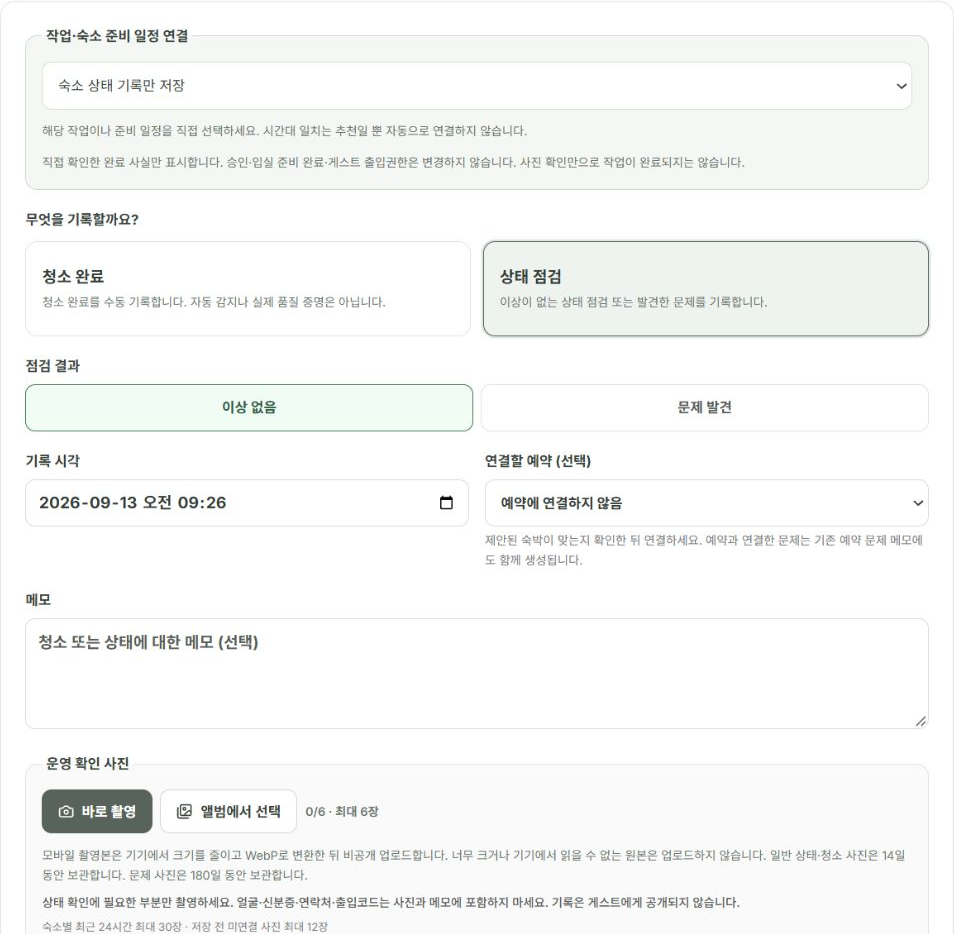
These are separate from guest-facing amenity and arrival photos. Saving an inspection photo here does not publish it in the guest guide.
2. Record what you actually saw
Describe the location, time and condition. “Water on the floor in front of the washing machine” is an observation; “The guest broke it” is an inference. Keep them separate.
Do not record an inspection as completed if you have not visited. Separate guest-reported messages from your own on-site observations.
3. Prepare useful photos safely
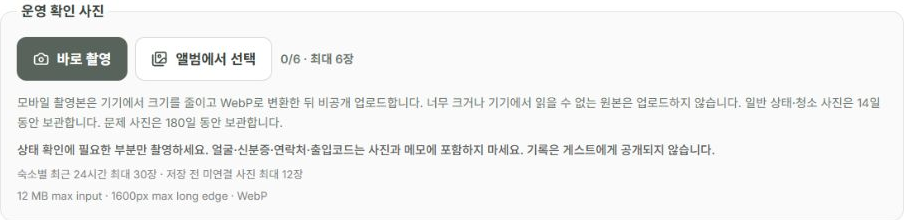
Under Operational check photos, select Take photo or Choose from album. Each record supports up to six photos. For before/after comparisons, use the same place and direction. Remove visible door codes, guest IDs, delivery labels and phone messages before shooting.
If damage photos contain someone else’s personal details, restrict access to people who need them rather than sharing freely.
4. Link work and choose how to save
Under Link task / preparation schedule, choose the related item. Check both property and time to avoid another reservation’s task on the same day.
Select Save record to save observations only. If work is also complete, tick Also mark the selected task or stage complete. The button becomes Save record and mark complete. Uploading photos and finishing work are separate; choose according to the actual situation.
5. Photos do not prove readiness
Use photos to check whether cleaning and inspection are finished. A saved image alone does not mean tasks are complete or the next guest can arrive.
Opening photos does not change Property ready or guest access settings. After on-site checks, mark the completion items separately.
6. Recheck the record and retention period
Reopen the saved record and check property, inspection time, photos and linked task. Ordinary/cleaning photos are retained for 14 days; issue photos for 180 days. For longer-term damage documentation, check the record type and on-screen retention guidance, and keep originals separately if needed.
Condition records support comparisons. Photos alone do not establish damage causes or compensation amounts. Separate observations from assumptions.
Check your progress
- You recorded the property, time and observed condition accurately.
- You uploaded relevant photos and linked the work.
- You chose record-only or completion according to what actually happened.
Availability and things to know
Property condition records are available on the paid Plus plan.
Read next
Episode 31 · Manage today’s tasks and property preparation schedules
Episode 33 · Export direct reservations and blocks to external calendars