
How to use stayV Host · EP. 24
Using stayV HostShow maps and nearby tourism information
At a glance
Help guests answer “Where can we go nearby?” Enable nearby tourism information, then follow a place card through to directions in an external map.


When guests ask about nearby places, guidance they can browse themselves is helpful. stayV’s nearby tourism information links place cards to external map directions. Start by checking location and display settings, then follow the guest’s journey.
At a glance
- stayV fills nearby tourism information using Korea Tourism Organization data.
- Hosts check the property location and decide whether to display it.
- Browse places and distance ranges in the guide’s Nearby menu.
- Directions on a place card opens an external map app.
- Card distances are straight-line distances, not travel times.
Learn more
1. Check location and nearby visibility
In the editor’s Location, check the address and map pin. Enable Show nearby tourism information on the guest page and save.
Nearby information and taxi connections have separate switches. Changing one leaves the other unchanged.
2. Open Nearby as a guest
Select Nearby in the published guide. Review the categories, places and distance ranges.
The list is automatically filled using Korea Tourism Organization information and stayV’s criteria. Hosts currently cannot add places or rearrange recommendations directly. Put favourites such as a local restaurant in an FAQ or guidance card.
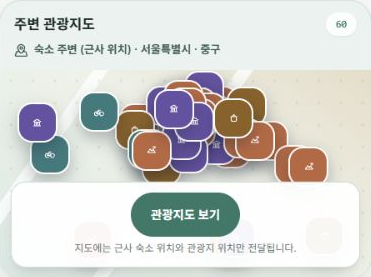
3. Understand where distances are measured from
Try the distance filters. In the public view without a code, distances start from an approximate point near the property to protect its exact location. This differs from the location used for a booked guest after code entry.
Card distances are not walking or driving times. Choose the transport mode and starting point in an external map to check the actual route and duration.
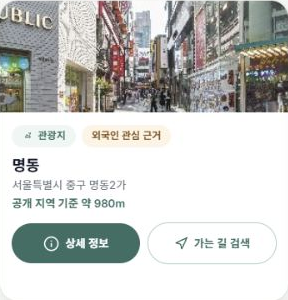
4. Check place details and directions
Open a card, read its description and select Find directions. Kakao, Naver or Google Maps may open depending on the situation.
The map provider selected in the host editor—Google, or Kakao for Korean properties—controls the embedded guide map. It is separate from the external app opened by a guest’s directions button.
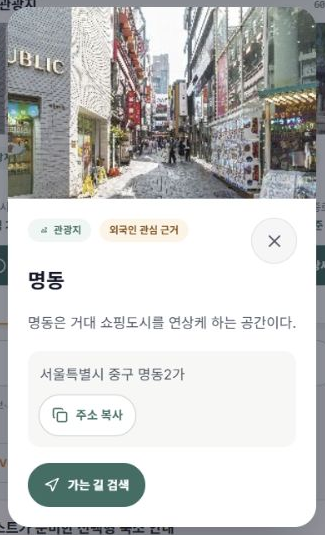
5. Check the destination in the external map
Check that the map destination matches the place you selected. A starting point may be missing on a computer or with phone location permissions disabled. Choose one manually in that case.
6. Check current information and other languages
Opening hours, prices, closing days and events can change. Tell guests to check the place’s official information before visiting. Some places may appear differently by language, so try the language your guests use most.
Finally, follow “Nearby → select place → open map → return to guide” on your phone to check the guest’s whole journey.
Check your progress
- You saved the nearby-information display setting.
- You browsed places and distance ranges in the guest view.
- You checked the destination in the external map.
Availability and things to know
Nearby information is available on Free. Features using a booked guest’s exact property location are available on Plus after that reservation’s guidance opens.
Read next
Episode 23 · Save the guest guide as a PDF and print it