
How to use stayV Host · EP. 22
Using stayV HostCreate a Wi-Fi QR code for the room
At a glance
Let guests connect by scanning rather than typing a long password. Create, print and place a Wi-Fi QR code, then test it on a phone.

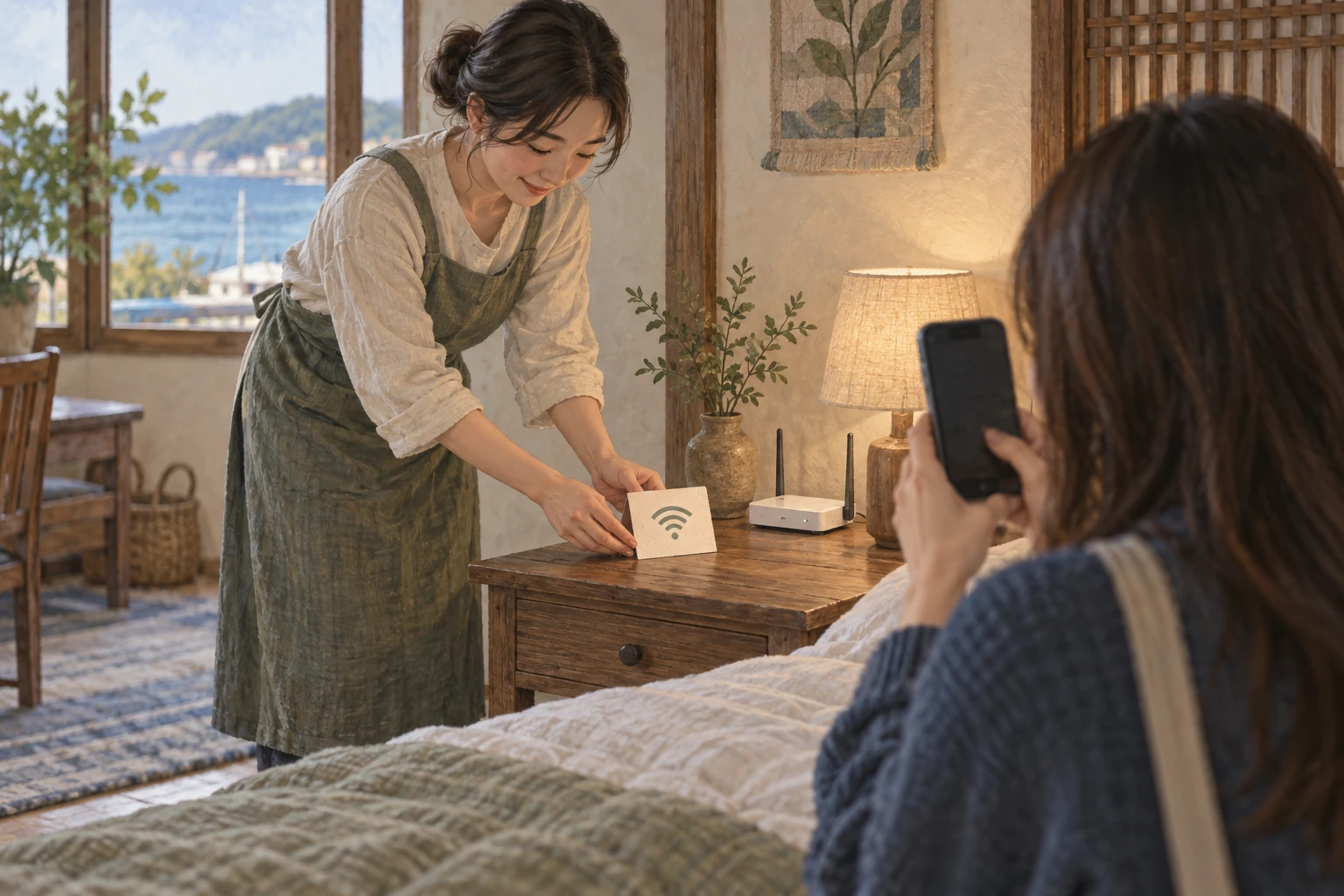
Long Wi-Fi passwords are easy to mistype. A Wi-Fi QR in the room lets guests scan to connect. It differs from the guide QR, so start by saving the correct network details and testing the connection on a phone.
At a glance
- A Wi-Fi QR connects to the network without typing; it does not open the guide.
- Save the guest network’s actual name and password in Stay information first.
- Save or print the Wi-Fi connection QR under Share QR / Print on the dashboard card.
- Scan the printed code and check that the phone connects.
- Update stayV information and the room QR when the router password changes.
Learn more
1. Check the actual network information
In the editor’s Stay information, compare the name and password with the router’s guest network. Correct any differences.
A single wrong digit, letter case or space can prevent connection even when the QR scans. Use the guest network rather than the host-management network.
2. Open Wi-Fi QR from the dashboard
Expand Share QR / Print on a published property card and find Wi-Fi connection QR. The Guest guide QR above it opens the guide and is available on all plans. Wi-Fi QR is available on Plus.
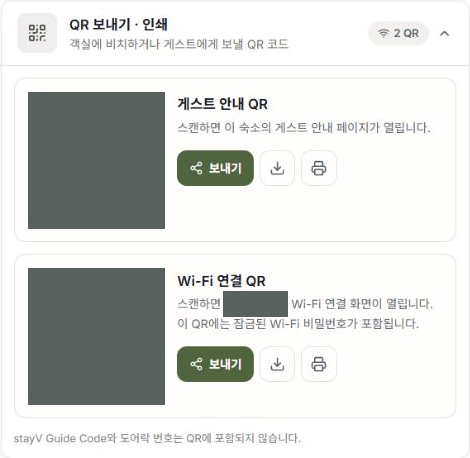
3. Remember that the QR contains the password
A guide QR opens a link. A Wi-Fi QR contains the network name and password. Treat the small image like a written password note.
Keep it inside the room and out of promotional photos or public pages.
4. Save or print it
Use Save image to download the QR. The print icon offers Print at 70 × 90 mm sticker size. Check that the margin and lettering are not cut off. Adjust the print preview if printer settings change the size.
5. Scan it with your phone
Print it at the size you will use, then scan with a phone camera. A prompt such as Connect to network should appear, followed by a successful connection. Wording varies by phone.
Seeing a clear QR on a computer is only the first check. Test the printed version through to an actual connection.
6. Replace the QR when the password changes
After changing the router password, update stayV and replace printed room QR codes. Changing stayV alone does not change the router password.
Removing a paper QR does not remove photos already taken or disconnect devices. If you are concerned the password has spread, change it on the router.
Check your progress
- Router details match the values saved in stayV.
- You scanned the printed QR and connected on a phone.
- The room QR is absent from promotional photos and public pages.
Availability and things to know
Wi-Fi connection QR codes are available on the paid Plus plan. Guest guide QR codes are available on all plans.
Read next
Episode 21 · Prepare reservation messages and record delivery