
How to use stayV Host · EP. 03
Using stayV HostUsing the property editor: 10 menus, saving and previewing
At a glance
Learn what the property editor's 10 menus do, where to save ordinary fields and cards, and how to check your changes in Preview.

The property editor is where you build guest guidance a little at a time. The menus may look numerous, but the routine is simple: open the relevant menu, enter information, save, then check what guests will see.
These are real screens from the Seoul Ongi Hanok · Practice guide draft. Select your property in Property management and open its editor to follow along.
At a glance
- Choose the left-hand menu that matches what the guest needs to do.
- Save ordinary fields with the bottom button and guidance cards with Save card inside the card.
- Next only changes menus; it does not save.
- Use the right-hand preview while writing and the top Preview after saving.
- Saving a published property updates the guest view immediately.
Learn more
1. Find the right menu on the left
The left side has Basic, Location, Photos, Host, Arrival, Stay information, Amenities, Rules, FAQ and Publication. When starting, you can work from top to bottom. For an existing guide, go straight to the menu you need.
If you are unsure where something belongs, think about what the guest wants to do.
| What the guest wants to do | Menu |
|---|---|
| Learn about the property | Basic |
| Find their way to it | Arrival |
| Check arrival/departure times or Wi-Fi | Stay information |
| Use the air conditioner or washing machine | Amenities |
| Check the house rules | Rules |
| Find an answer to a common question | FAQ |
The selected menu’s fields appear in the centre, with Input preview on the right.
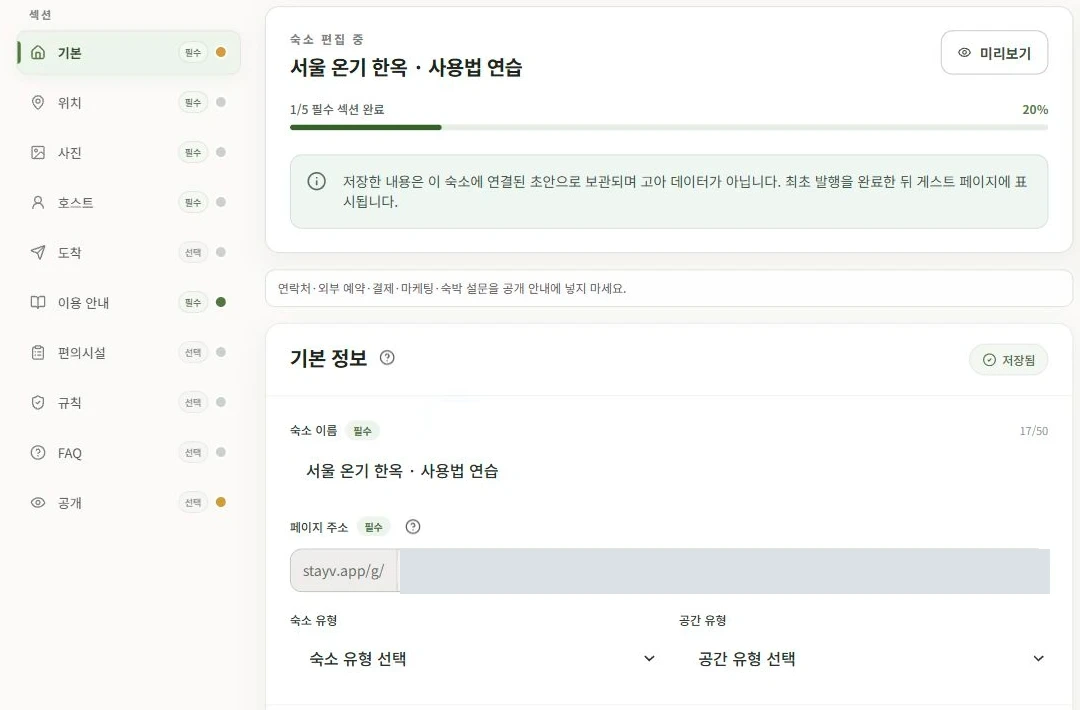
2. Save ordinary fields using the bottom buttons
For screens with several fields, such as Basic, Location, Host and Stay information, use the buttons at the bottom after writing.
- Save: Saves the current screen’s information.
- Save and next: Saves and opens the next menu.
- Next: Opens the next menu without saving.
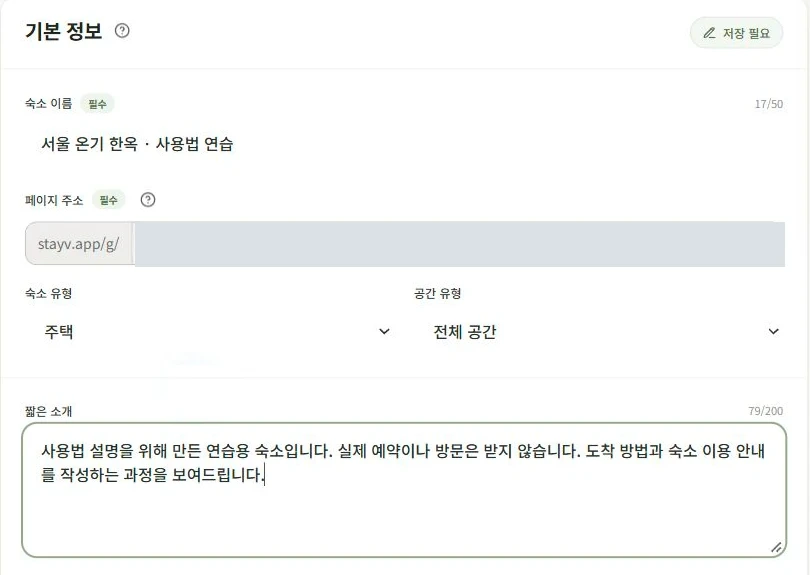
For your first guide, selecting Save and next after each menu helps you work through the sections. If you only changed one section, select Save and confirm that it finished.
Wait for saving to finish before closing the window. If an error or input message appears, fix that item and save again.

3. Save guidance cards inside the card
In Arrival, Stay information and Amenities, you can split guidance into cards. Think of each card as one instruction a guest taps to read.
A “Using the washing machine” card could say:
The washing machine is in the utility room next to the bathroom.
① Press Power (전원) at the top right.
② Put one cup of detergent in the left compartment of the drawer. The detergent is on the shelf above the machine.
③ Select Standard (표준) and press Start/Pause (동작/일시정지). The cycle takes about one hour.
Adapt the button names and positions by checking your own machine.
When finished, select Save card inside the card. Close the editor and check that the new card appears in the list with its title.
The ordinary Save and Save card buttons are in different places. If you changed the check-in time and created a card in Stay information, check that both were saved separately.
4. When you change menus without saving
If you select another menu with unsaved changes, a window may ask what to do.
- Keep editing: Stay on this screen and continue writing.
- Save and move: Save your changes and change menus.
- Discard and move: Remove the changes you just made and change menus.
Decide whether you want to keep your work before choosing a button. If unsure, select Keep editing, review the information and save.
5. Preview on the right while writing, then at the top
The right-hand Input preview shows title length, sentences and card layout as you work. Shorten lengthy text or move important information forward there.
To view the whole guide, save and open Preview at the top. Move through the guest menus and open the instruction you just wrote.
An item visible in your preview may not be visible to every guest. Visibility depends on the card’s audience setting, such as Everyone or Booked guests only. For a published guide, also check the actual guest link.
6. Read changes before saving a published property
Guests can see a new property after you publish it in Publication. For an already published property, saving updates the guest view immediately.
Do not assume an unchecked sentence stays hidden until you press Publish later. Before changing times, addresses or rules, check that they match your actual operation.
After saving, open the guest link and find the changed item. Use the same routine in the other menus.

Check your progress
- You can find the menu that matches your change.
- You know where ordinary Save and Save card are.
- You checked the result in the top Preview and guest link.
Availability and things to know
The property editor is available on all plans. Some features, such as photo limits and step-by-step guidance, vary by plan.
Read next
Episode 2 · Find your way around the dashboard